
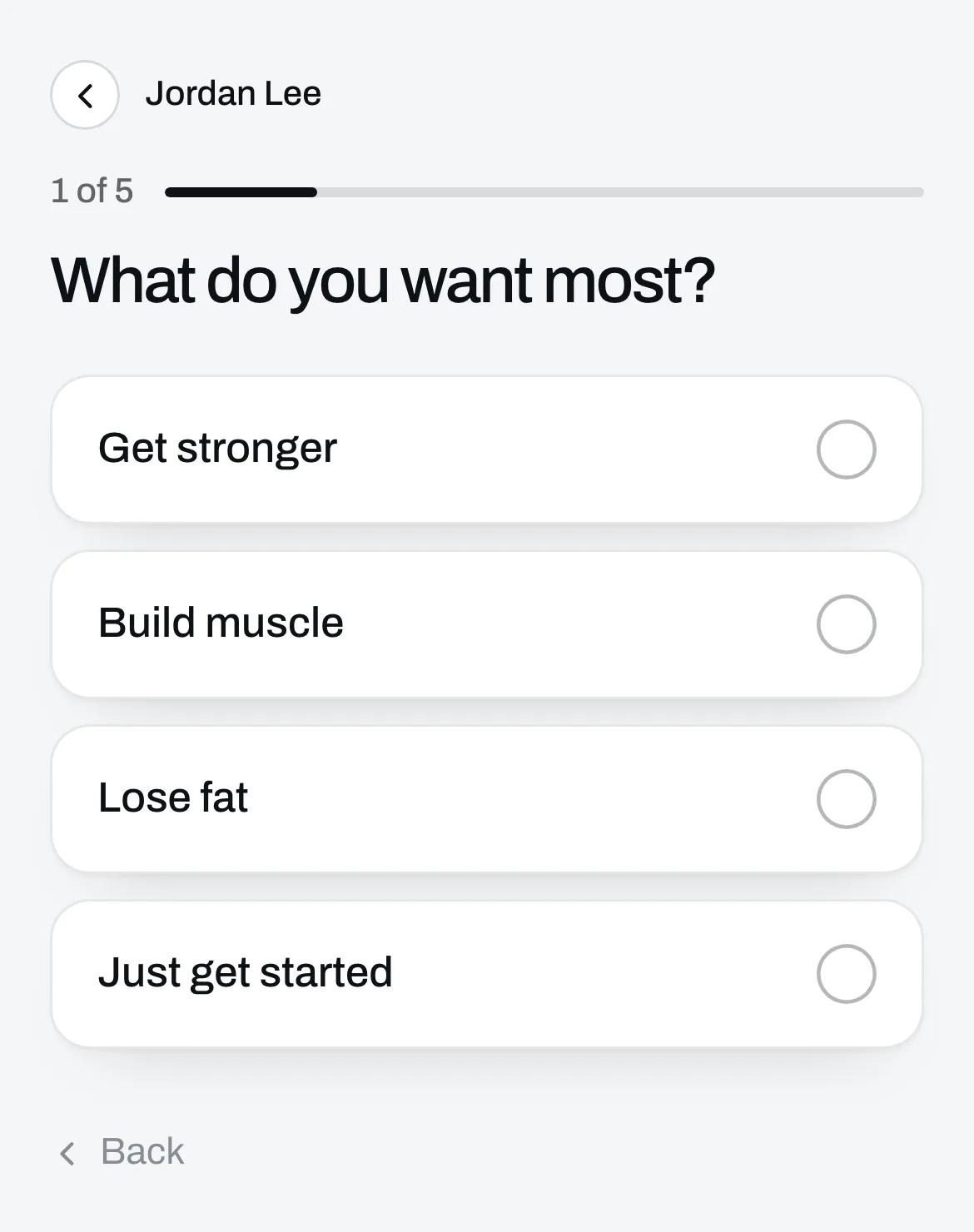
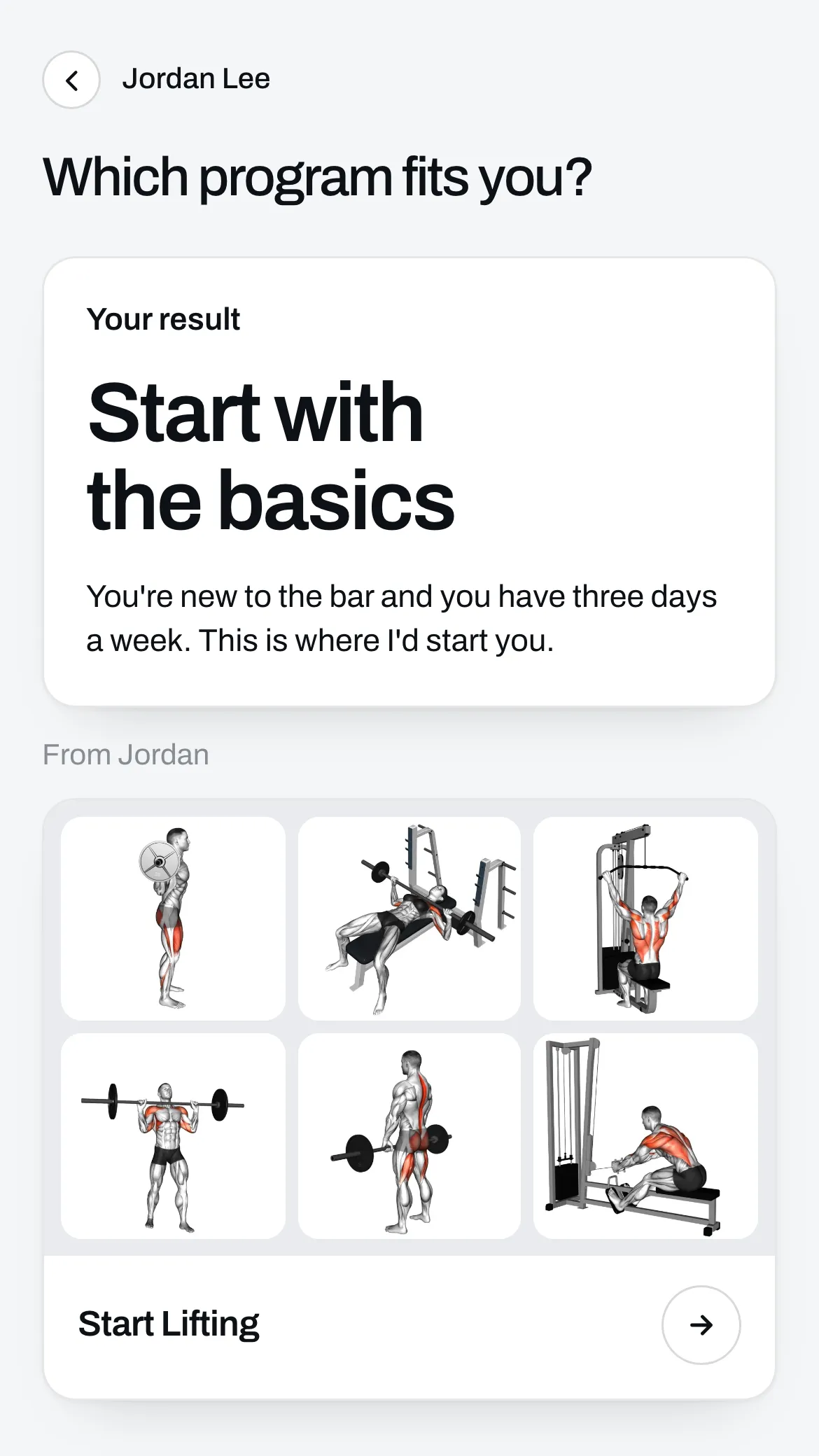
People tap it on your page, answer a few questions one at a time, and see a result at the end. Under the result you can show one thing from your list, like a program. You get their email, their result and their answers.
It’s the same thing whether you call it a quiz or a form. With results it’s a quiz, like “Which program fits you?”. With no results it’s a form, like a coaching application or a one-question poll.
Start one
Go to Page, click Add under Your list, then click Quiz or form. There are three ways to start:
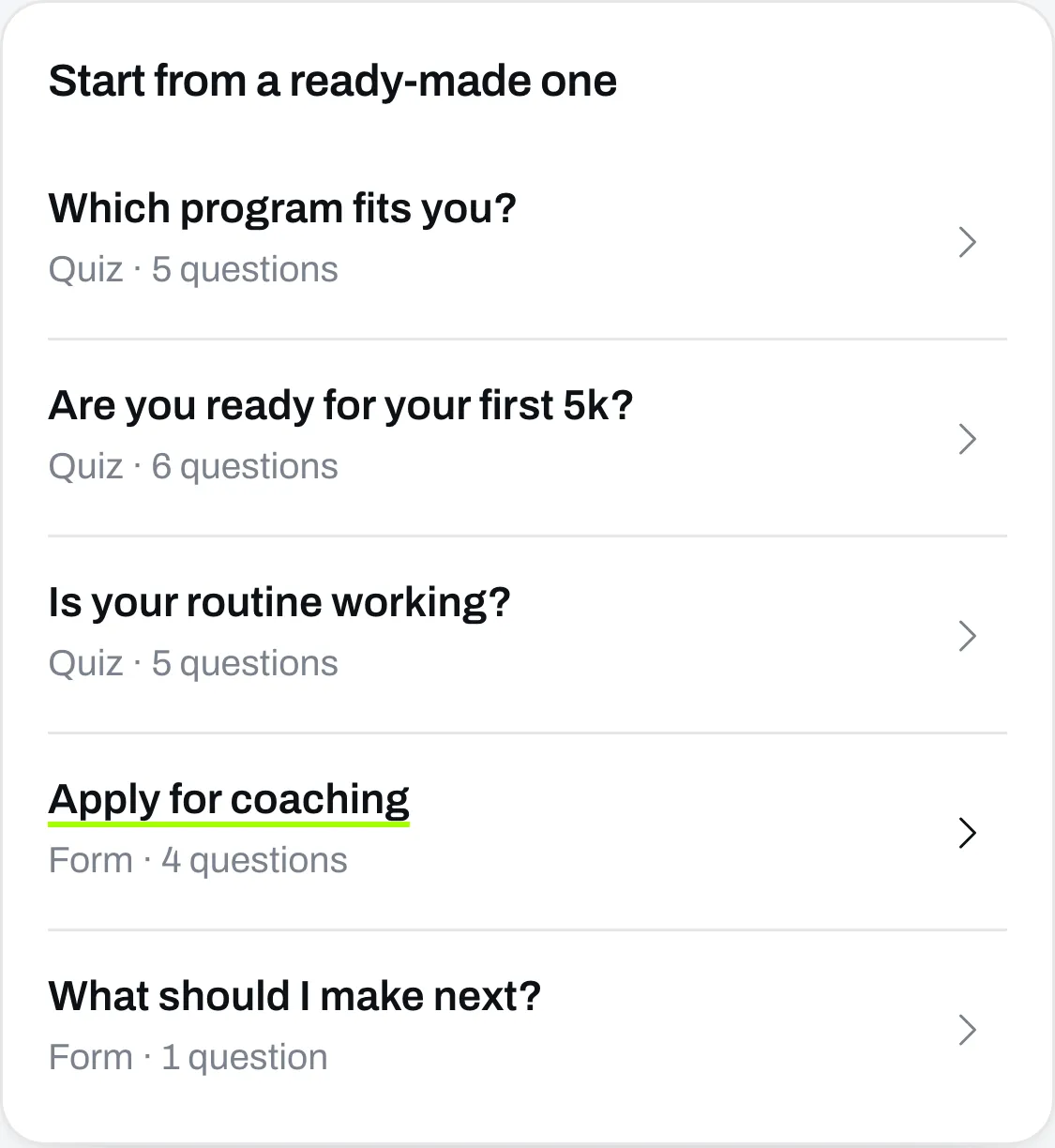
- Under Start from a ready-made one, click one of the five. It opens filled in, and every word is yours to change.
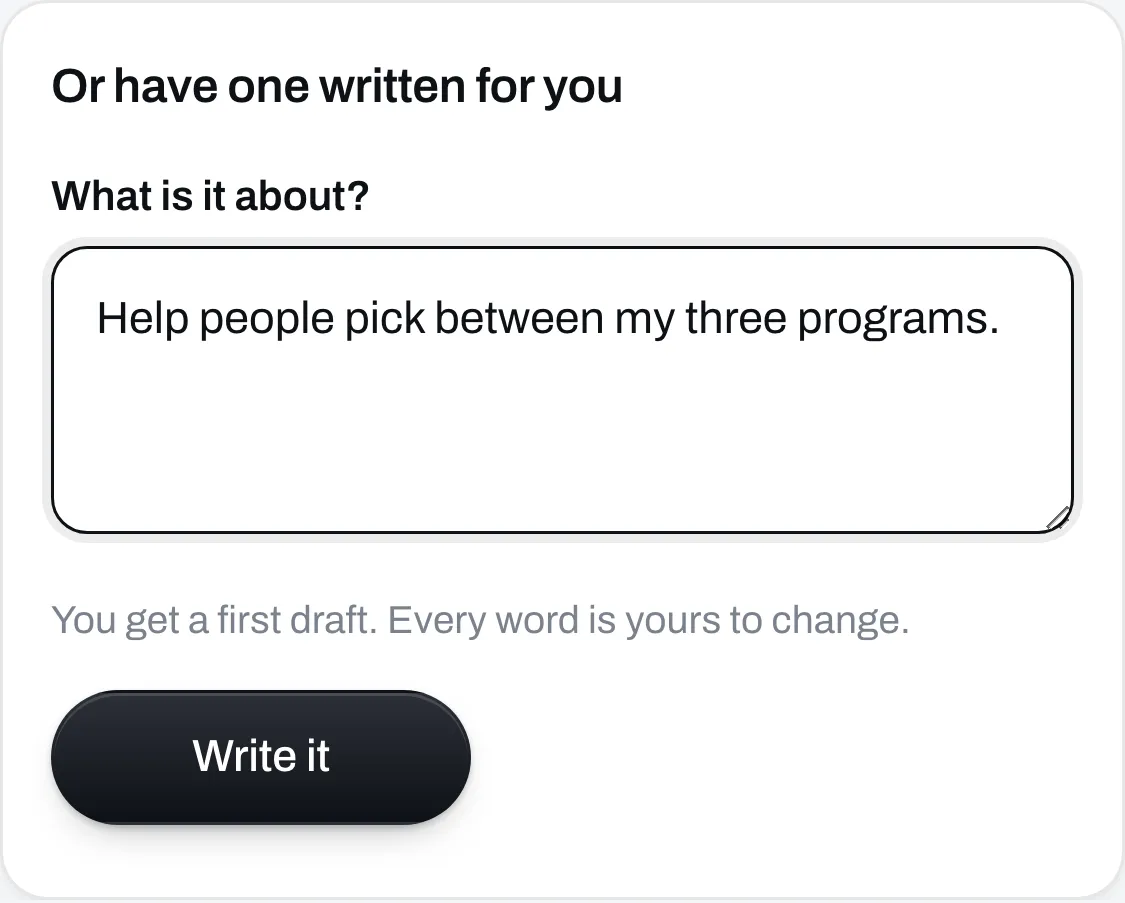
- Under Or have one written for you, type what it’s about under What is it about? and click Write it. It takes a few seconds, and you get a first draft.
- Click Start empty to write it all yourself.
Nothing is saved until you click Save. The phone on the right shows it the way people will see it, and you can tap through it there.
Write the title
Type a Title and a Line under it. Both show on your page and on the first screen of the quiz.
Write your questions
Under Questions, click a question to open it, or click Add a question. You can have up to 12.
Under How they answer, pick one:
- Tap one answer. They tap an answer and move on.
- Tap several answers. They tap all that fit, then tap Next.
- Type an answer. They type it in their own words. You read it later in Audience.
A question people tap needs 2 to 6 answers. Turn on They can skip it if they don’t have to answer.
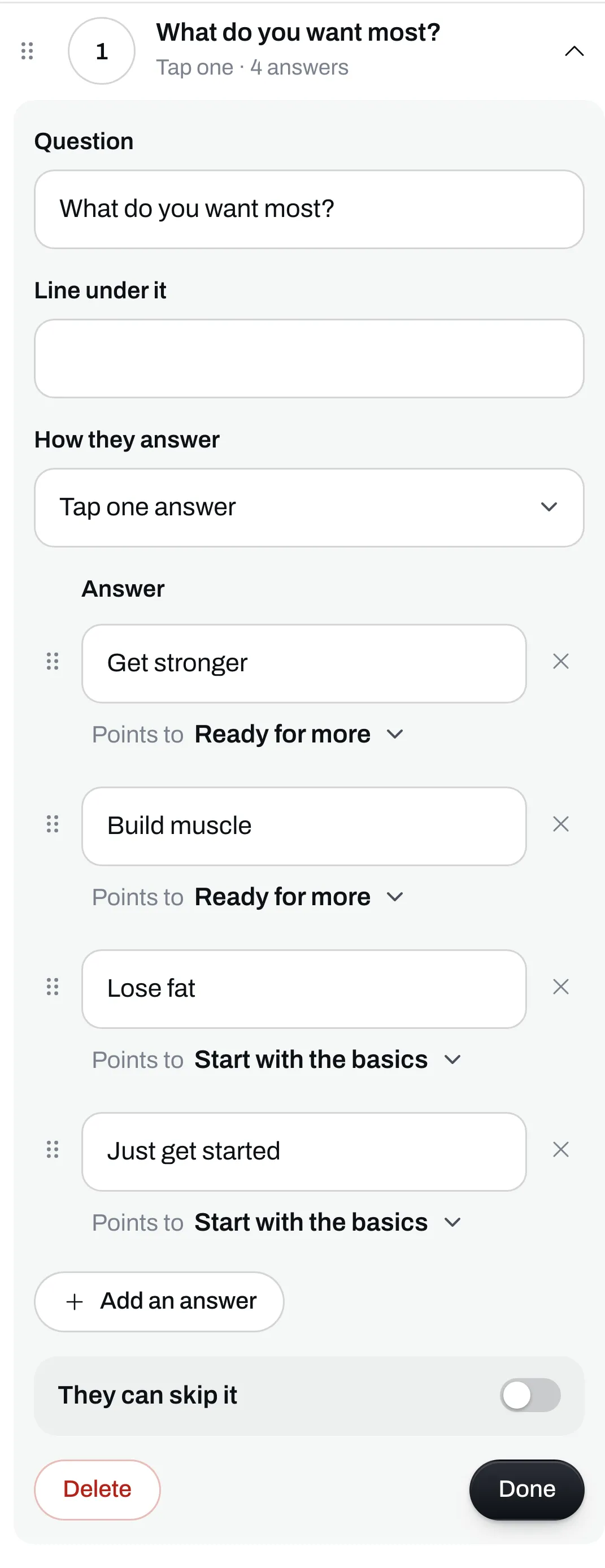
Drag a question by its handle to move it. The same goes for answers, and for results when the most answers pick the result.
Set up your results
Under Results, click Add a result. Give it a name, type what they read, and under Show under it pick one thing from your list, or nothing. You can have up to 6.
Under A result is picked by, pick one:
- The most answers. Next to each answer, under Points to, pick the result it points to. People get the result most of their answers point to.
- A score. Each answer is worth points. Each result has a Starts at number, the lowest score that gets it. The results stay in the order of where they start, and the lowest always starts at 0. Two results can’t start at the same score. To add a result under the lowest one, start it at 0, then give the old lowest one a higher Starts at.
What people type never picks the result.
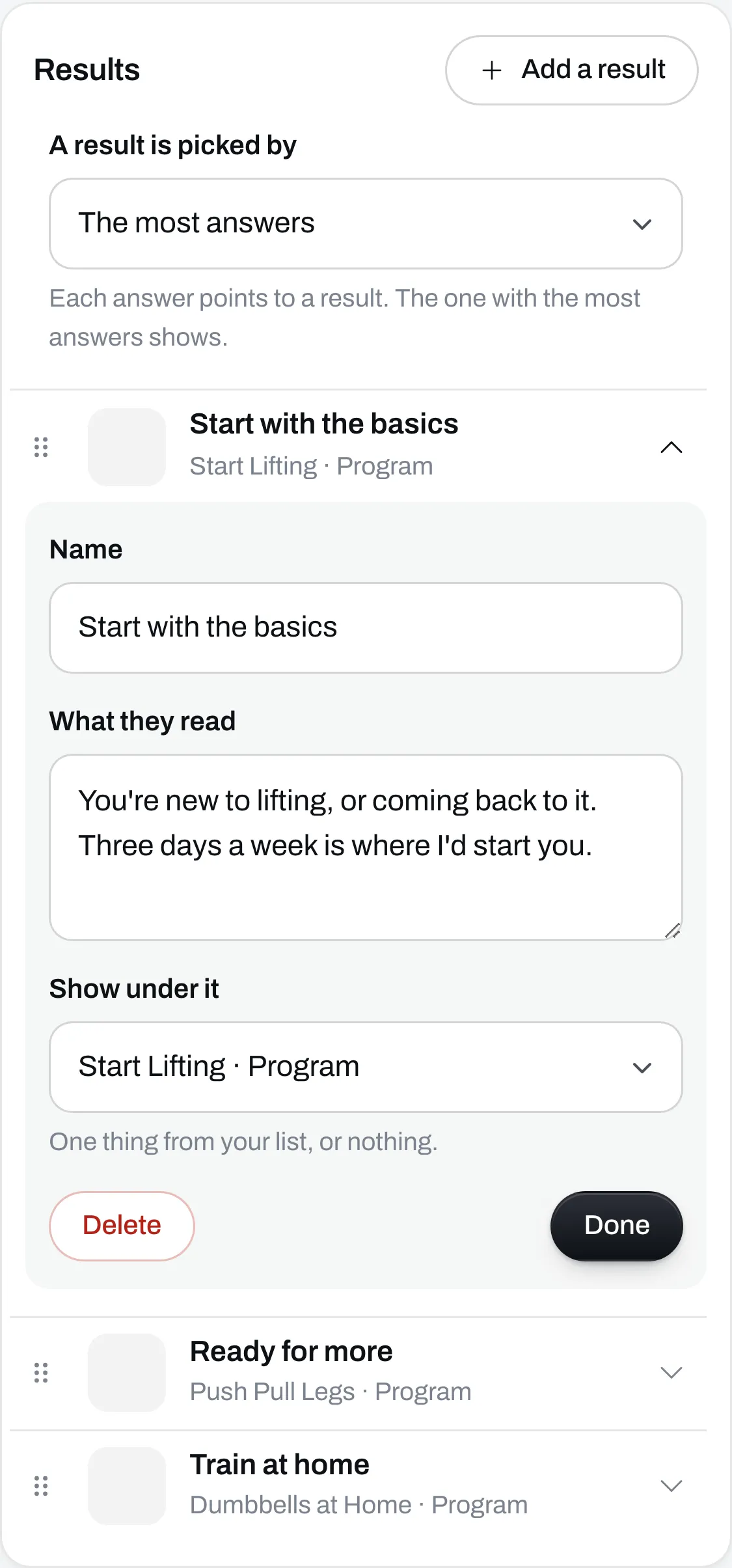
If you switch off or unpublish the thing under a result, the result still shows, with nothing under it, until that thing is back.
To make a form, don’t add any results. A card called When they finish shows up. Type what they read at the end, and pick something to show under it if you like.
Ask for their email
Under Ask for their email, pick when:
- Before they see the result. They give their email to see it.
- At the end, under the result. They see the result first, with a box for their email under it.
- Don’t ask. Nobody is saved. You only see how many people answered.
A form asks at the end or not at all.
When someone gives their email, they also get their result by email, with a link to what you put under it.
Have it changed for you
Under Change something, type what you want different, like “make it shorter” or “add a question about injuries”, and click Change it. Only what you asked for changes. If you don’t like the change, click Put it back.
There’s a limit on how many times a day you can ask.
Save it
Click Save. It joins Your list and shows on your page. Click it in Your list to change it later.
See who answered
Everyone who gave their email is in Audience, with their result and their answers. Stats shows how many people opened it, started it and finished it, and how many tapped each answer.
You can also send it by auto DM on Instagram, and write follow-up emails to the people who got one result.