
Making your own template is on Plus. You can only keep a few at a time. To make room for a new one, delete one.
Describe the look
Go to Page, click Change next to Template, then click Make your own.
Under Describe the look you want, type it the way you’d say it to a designer. “Dark with gold buttons.” “My brand colours, green and cream.” “Clean, black and white, with a big bold name.” You can also click one of the looks under the box to start from it.
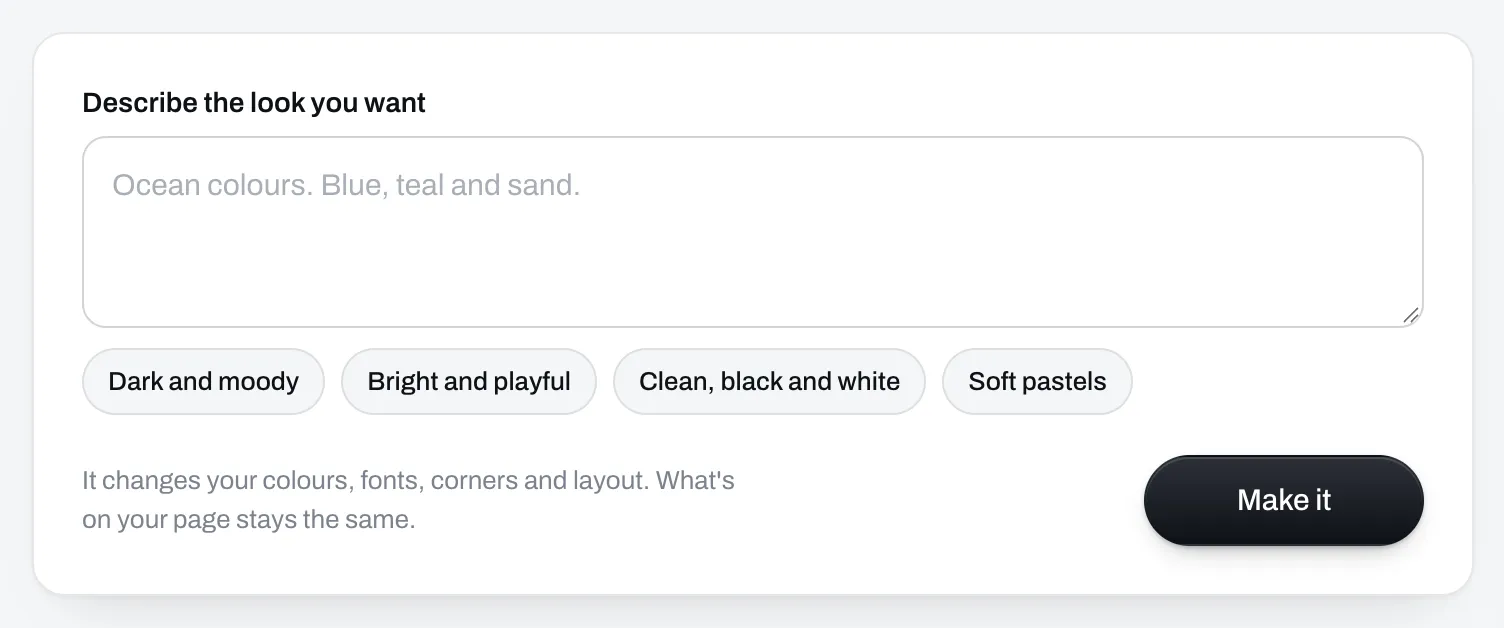
Click Make it. It takes a few seconds. Then the phone shows your own page in the new template.
Change it until you like it
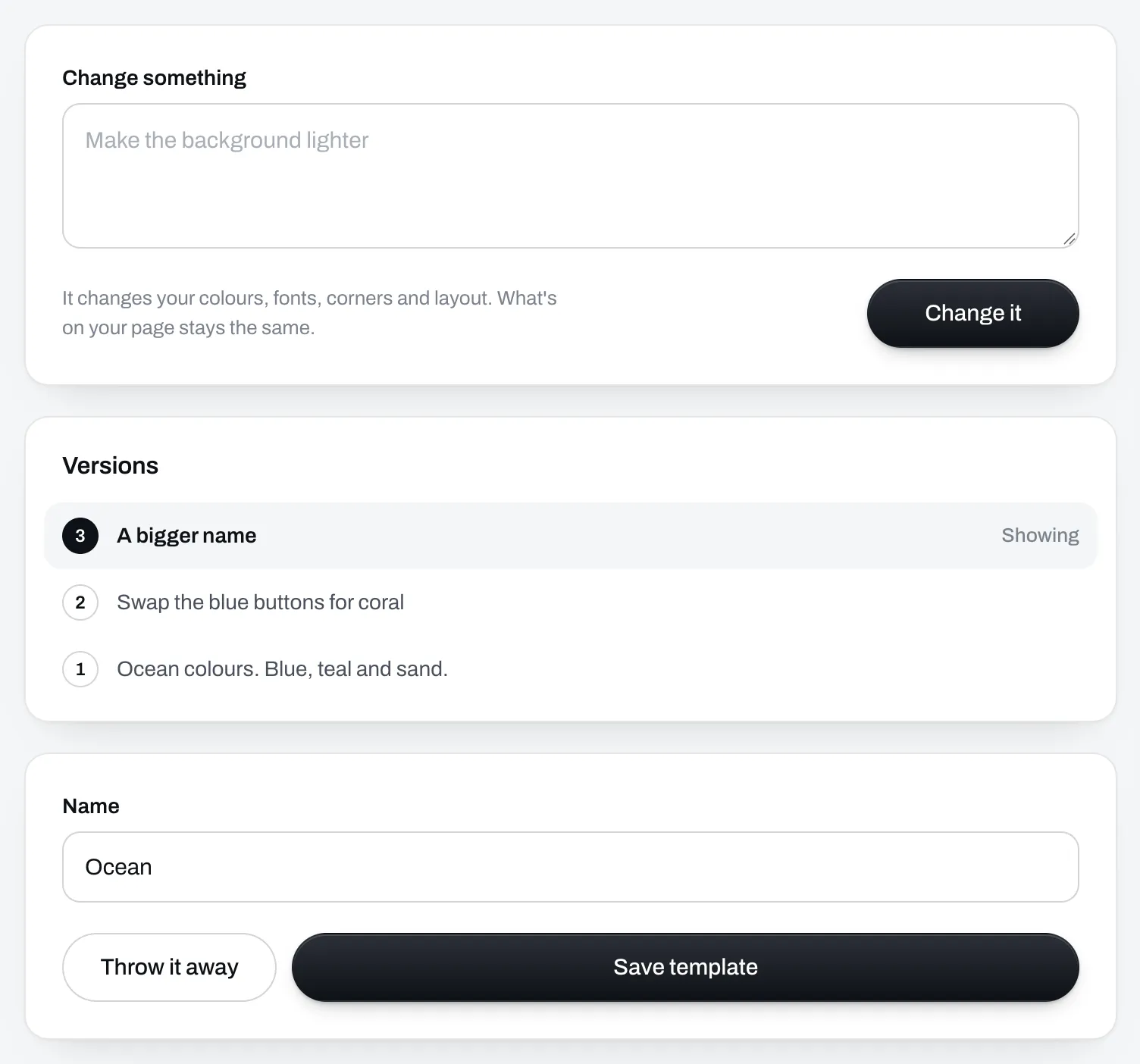
Under Change something, type what you want different, like “make the background lighter” or “a rounder font for my name”, and click Change it. Only what you asked for changes.
It can change your colours, fonts, corners, shadows, the background, and how your name and photo sit at the top. It can’t change what’s on your page. To add, remove or move things, go back to Page.
Go back to an earlier version
Every change is kept under Versions while you work. Click one to see it again. The one marked Showing is the one you’ll save, and the one your next change starts from.
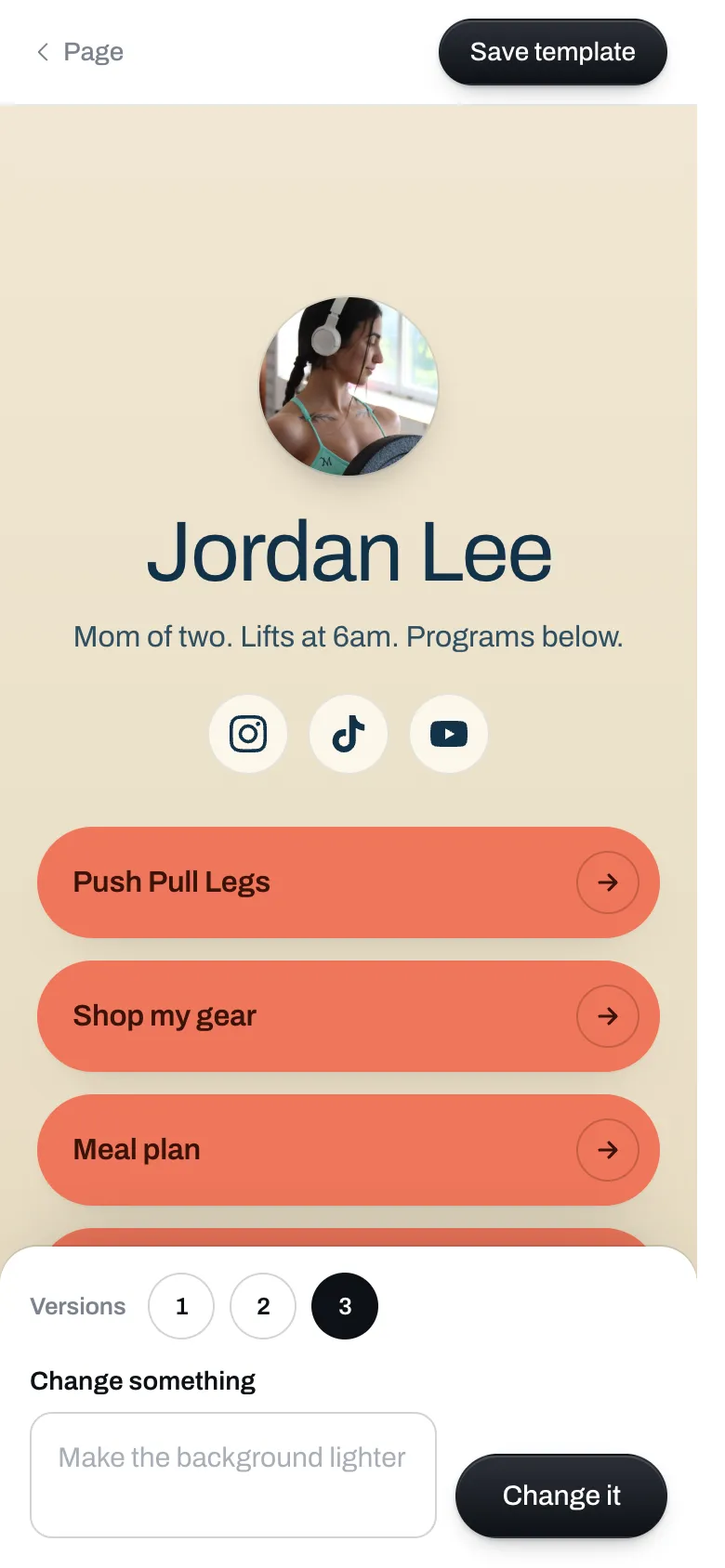
On a phone your page fills the screen, with the versions as numbers and the Change something box under it. Save template is at the top.
Name it and save it
Type a name under Name and click Save template. If you don’t want it, click Throw it away.
Saving takes you back to Pick a template, with your new template picked. Click Save there to put it on your page.
Change, rename or delete one later
Your own templates show first under Pick a template. Click the pencil on one to open it again.
- Type a change, click Change it, then click Save template. If the template is on your page, your page changes when you save, not before.
- Type a new name and click Save template.
- Click Delete template to remove it for good. You can’t delete the one that’s on your page. Pick another template first.
If you leave Plus
You keep every template you made. You can still use them, rename them and delete them. You can’t make new ones or change them until you’re back on Plus.