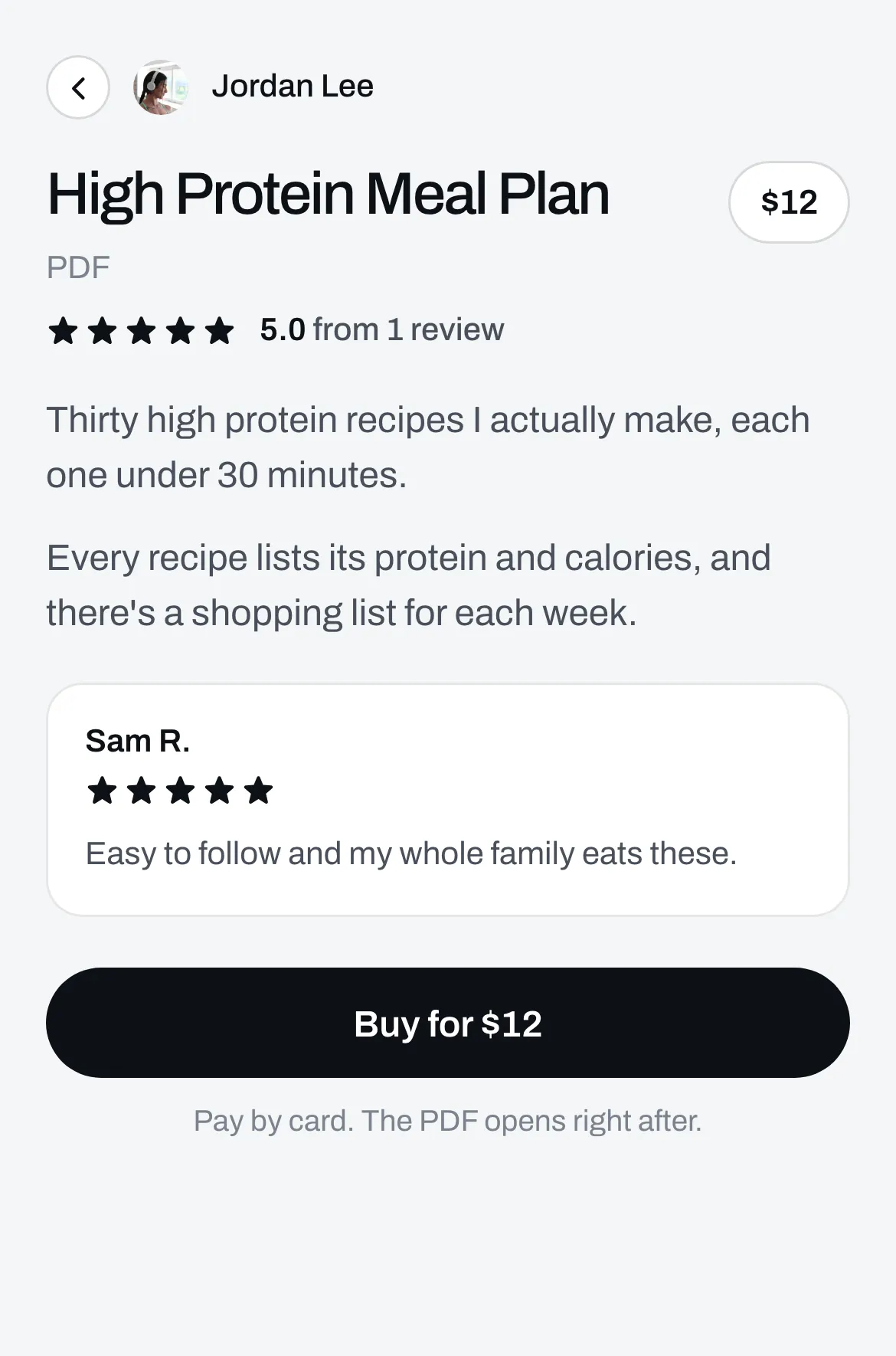
Every file, call and program has its own page. People land there when they tap it, read about it, then buy it or get it. A link gets a page too, once it has a price or asks for an email.
Open the Page tab
Go to Page, click the item in Your list, then click the Page tab.
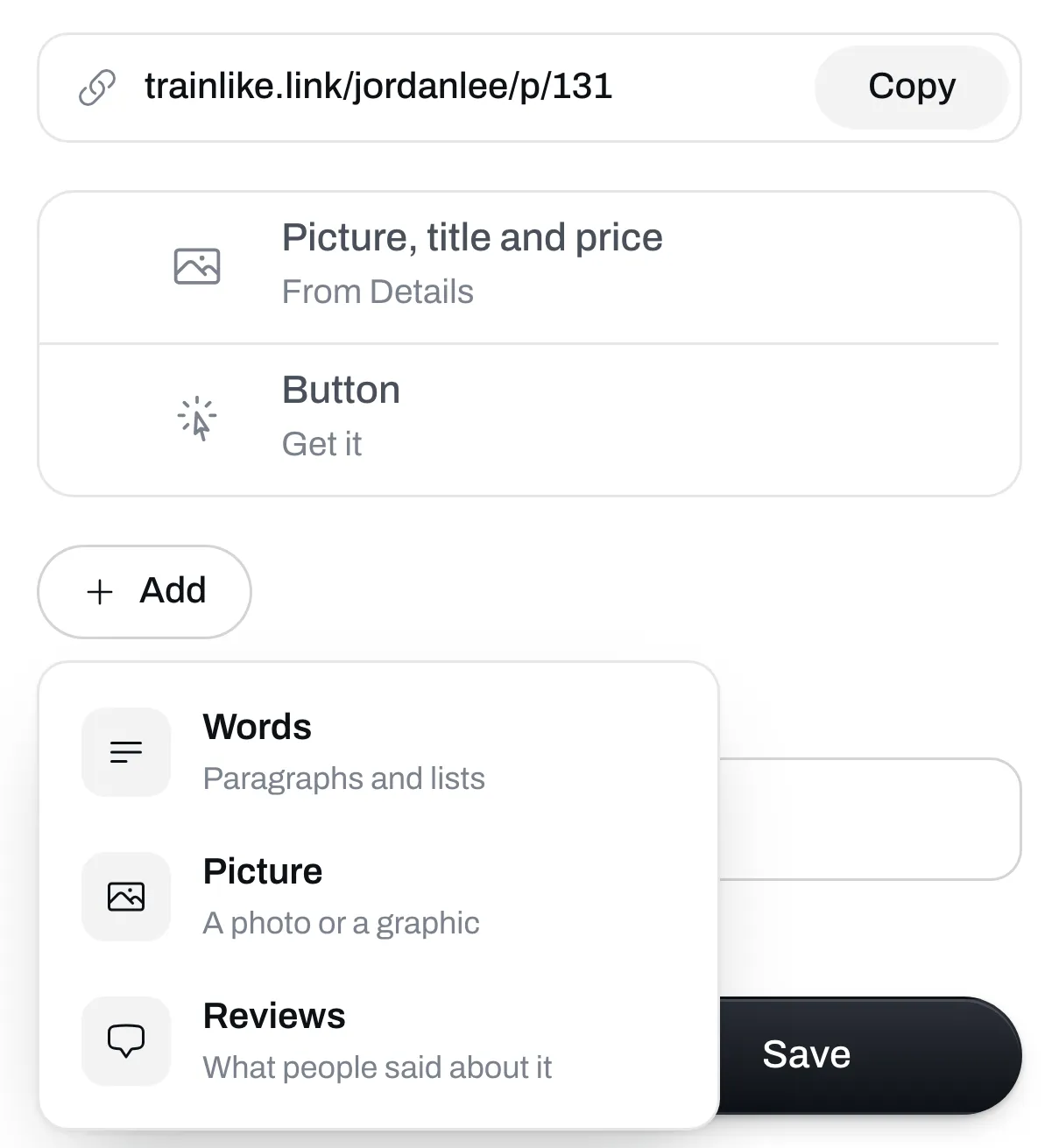
Add what you want to say
Click Add and pick one. You can add up to 20 of these to a page, and drag them into the order you want.
- Words are paragraphs and lists. You can use bold, italics, bullets and numbers.
- Picture is a photo or a graphic. It shows whole, with nothing cropped.
- Reviews are what people said about it.
Add your reviews
Click Add, then Reviews. Type the person’s name, pick their stars and type what they said. Under Picture, you can add a photo of their face or a before and after. Click Add a review for the next one. A page has one Reviews section, with up to 12 reviews.
You type these in yourself, so only use real ones that people sent you. Your rating shows under the item’s title.
Change the button if you like
Under Button words, type what you want the button to say. Leave it empty and it says what it does, like Buy for $12.
Save it
Click Save, then open the page to see it. You’ll find the address and a Copy button at the top of the Page tab, so you can send the page to people directly.