
Follow-ups are on Plus. They work on an email sign-up, a free file or program that asks for an email, a call, a quiz or form that asks for an email, or anything you sell. For example, you could check in 3 days after someone gets your free starter program.
You’ll need your business address in Settings first. See Send an email.
Open Follow-ups
Go to Emails, click the Follow-ups tab, then click the thing you want to follow up on.
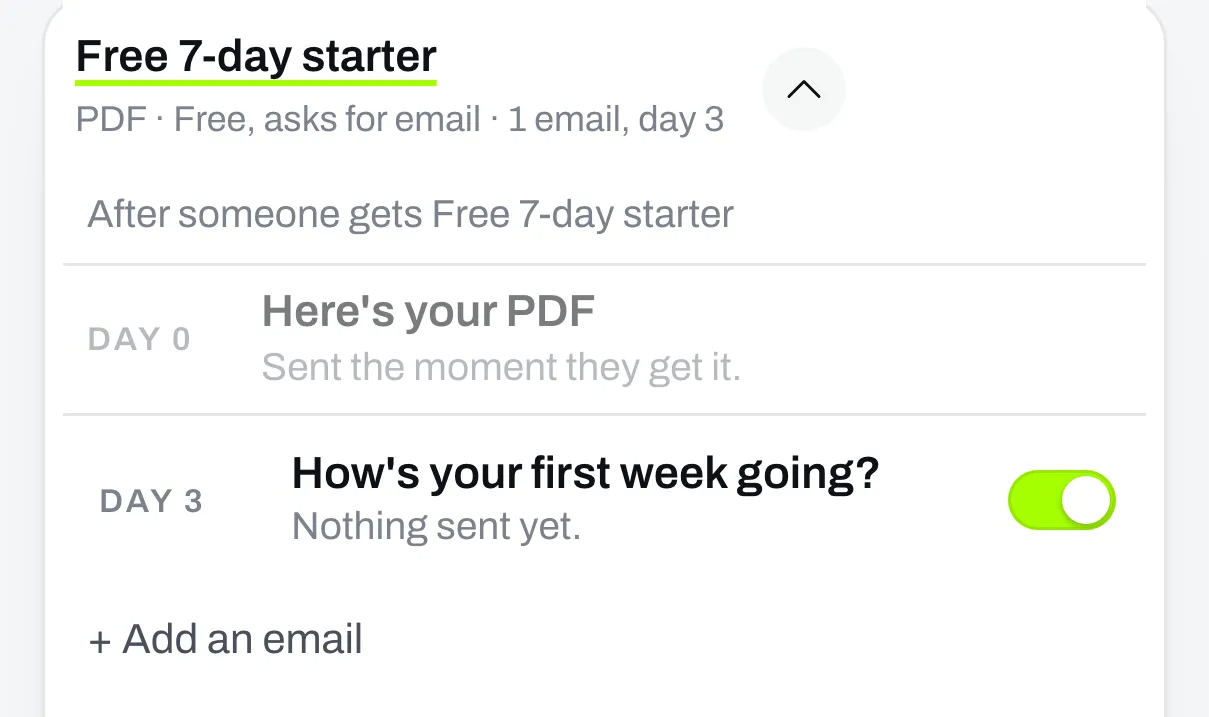
Day 0 is the email they already get, sent the moment they get it.
Add an email
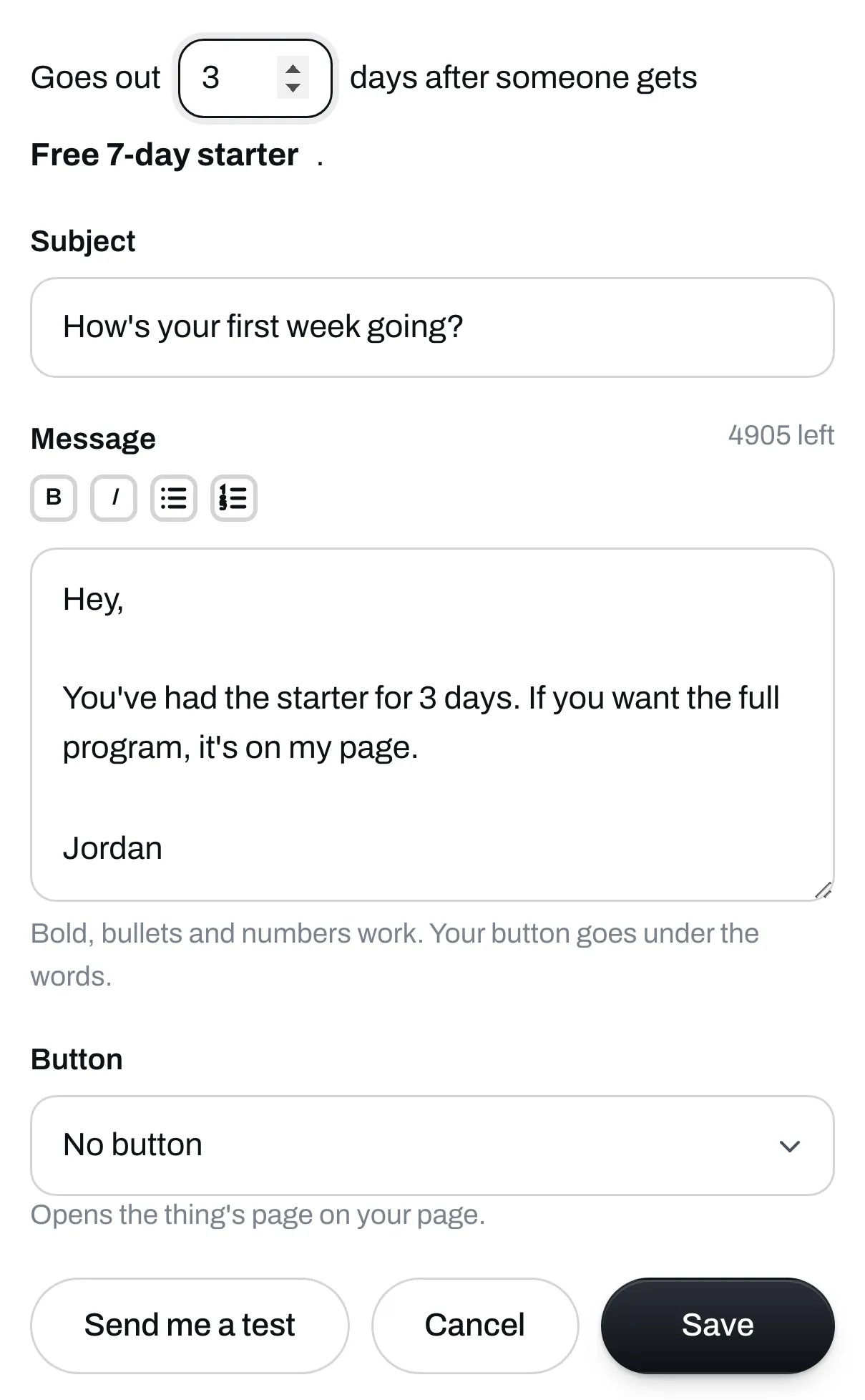
Click Add an email. Pick how many days after they get it it should go out. Then type a subject and your message, and add a button if you like. Send yourself a test if you want to check it, then click Save.
Write to one result of a quiz
On a quiz, a follow-up can go to the people who got one result. Pick the result under Send to. Leave it on Everyone who finishes it to write to all of them.
If someone takes the quiz again and gets another result, they get the follow-ups for their newest one.
Add more if you like
Each email has its own day, so you can build a short series.
Turn one off
Click the switch on its row. Follow-ups on a program also wait while the program is unpublished, and pick up again when you publish it.
A new follow-up also reaches people who got the thing before you wrote it, as long as they haven’t passed its day. If you add a Day 3 email today, someone who got the thing 2 days ago gets it tomorrow, and someone who got it a week ago doesn’t. People who unsubscribe stop getting follow-ups.