
Emails are on Plus, with up to 5,000 sends a month. One email to 100 people counts as 100 sends, and follow-ups count too. Tests don’t.
Add your business address
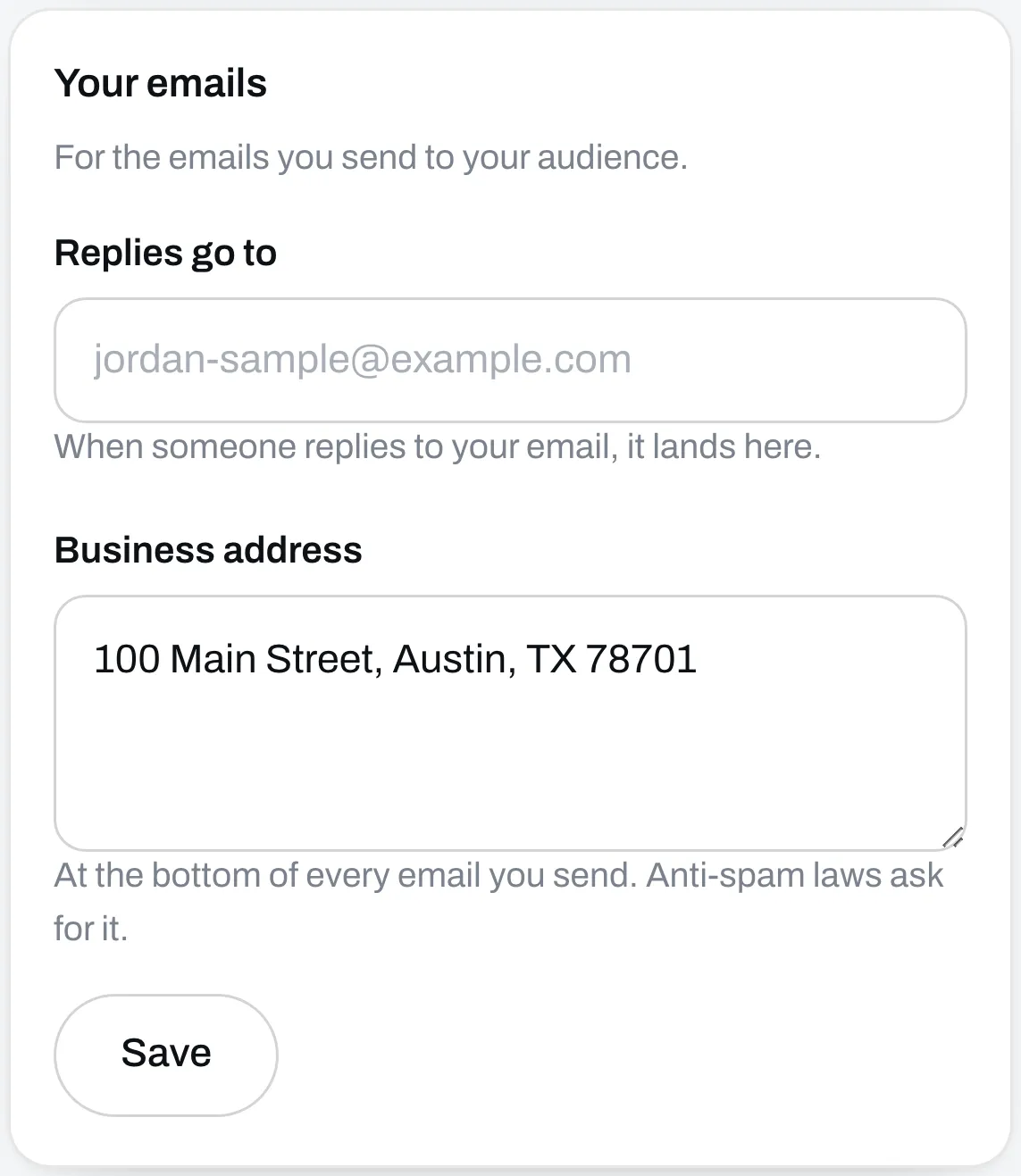
You only do this once. Go to Settings and scroll to Your emails. Your business address goes at the bottom of every email you send. Under Replies go to, type where you want replies to land. Click Save.
Write it
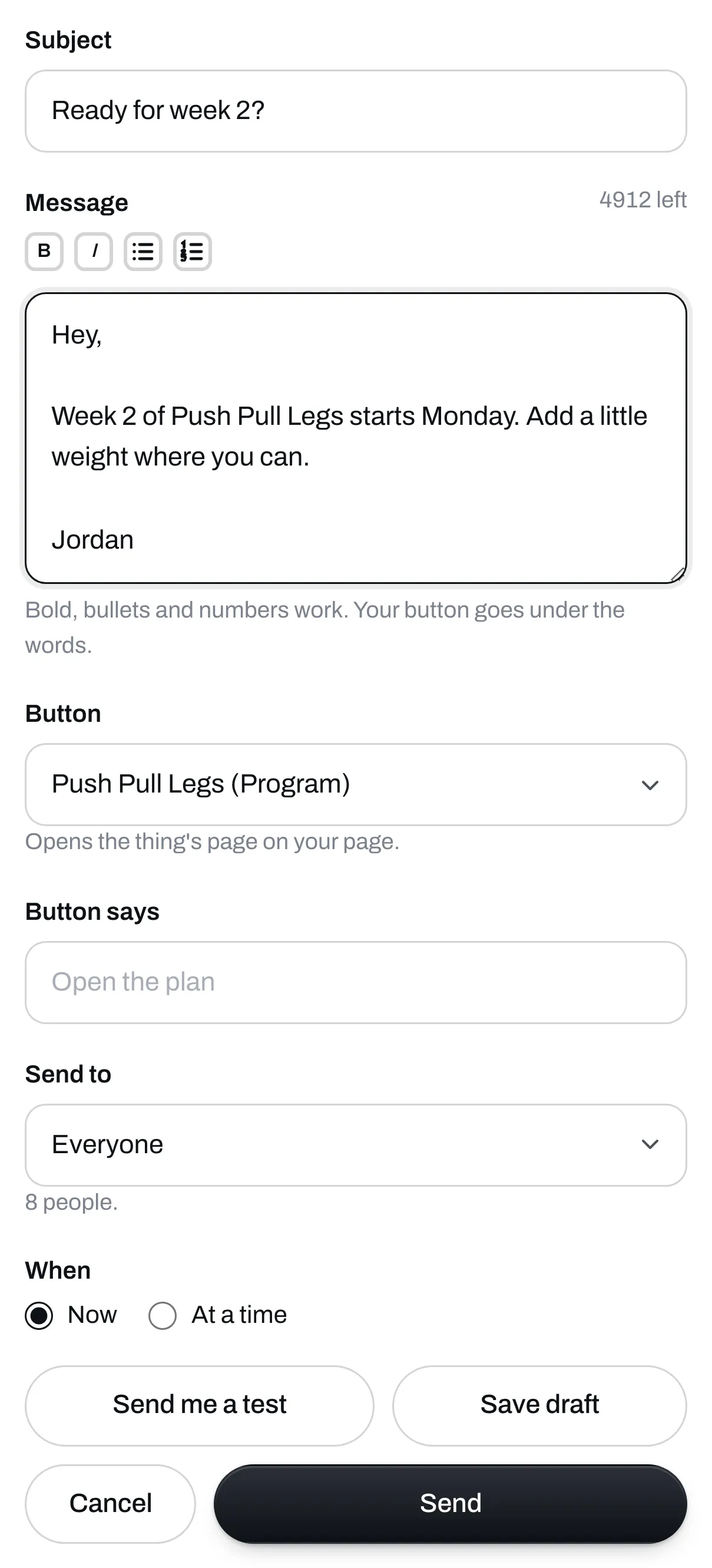
Go to Emails and click New email. Type a subject and your message. You can use bold, bullets and numbers.
To add a button, pick something from your page under Button. It opens that thing’s page. Type what you want it to say under Button says.
Pick who gets it
Under Send to, pick one:
- Everyone
- People who got… one thing, like a free PDF
- Buyers of… one thing
- Everyone who hasn’t bought… one thing
It tells you how many people that is.
Pick when
Choose Now, or At a time and pick the date and time.
Send yourself a test
Click Send me a test to see how it looks in your own inbox. It helps to check your button too.
Send it
Click Send, or Schedule if you picked a time. You can click Save draft if you’re not ready.
After it goes out, click the email in your list to see who got it, who opened it and who tapped the button. Every email has an unsubscribe link at the bottom, and people who use it stop getting your emails.