
Open your program in Programs and click a routine’s tab. Everything here saves by itself. If your program is already published, click Publish changes when you’re done, or people won’t see it.
Add an exercise
Type in the Add an exercise box and click the one you want. If it’s not on our list, you can add your own. An exercise can only be in a routine once.
Sets
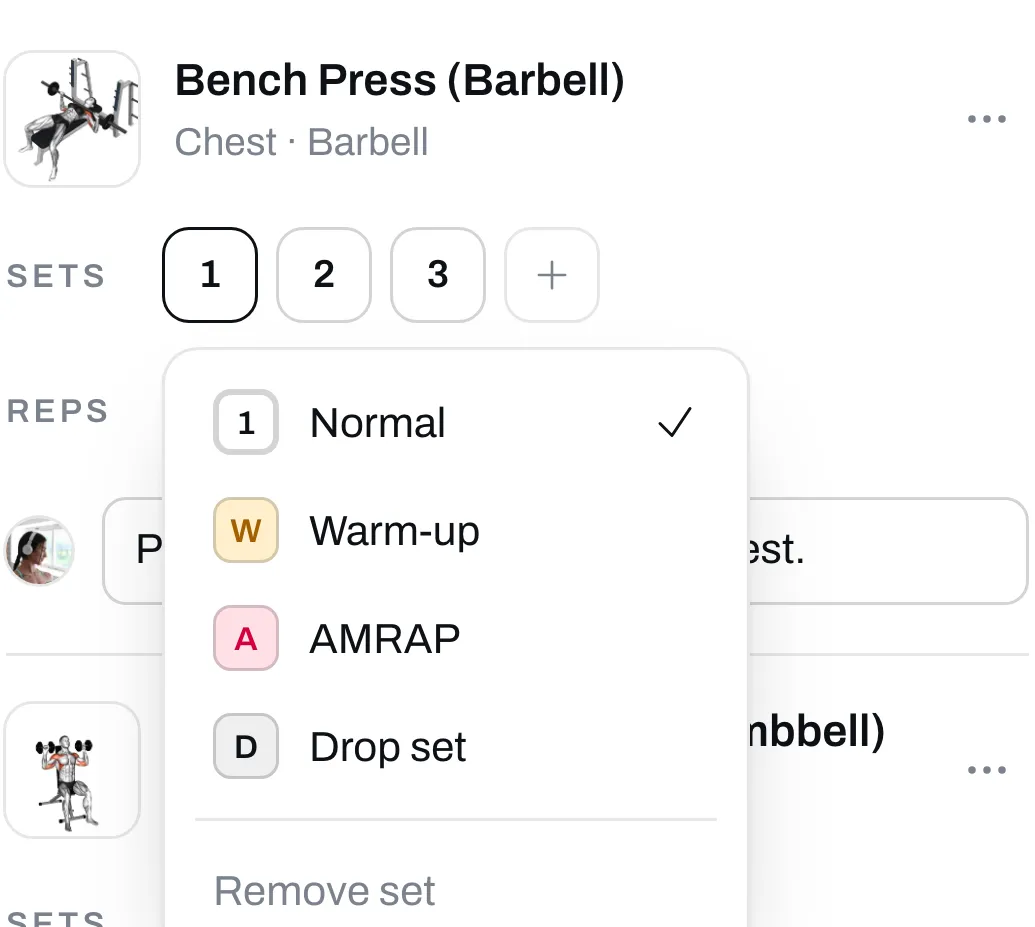
Each exercise starts with 3 sets. Click + to add one. Click a set’s number to change it:
- Warm-up shows as a W.
- AMRAP means as many reps as possible.
- Drop set shows as a D.
- Remove set takes it off.
Reps, time and distance
For most exercises you type a rep range, like 6 to 8. For an exact number, type it in both boxes.
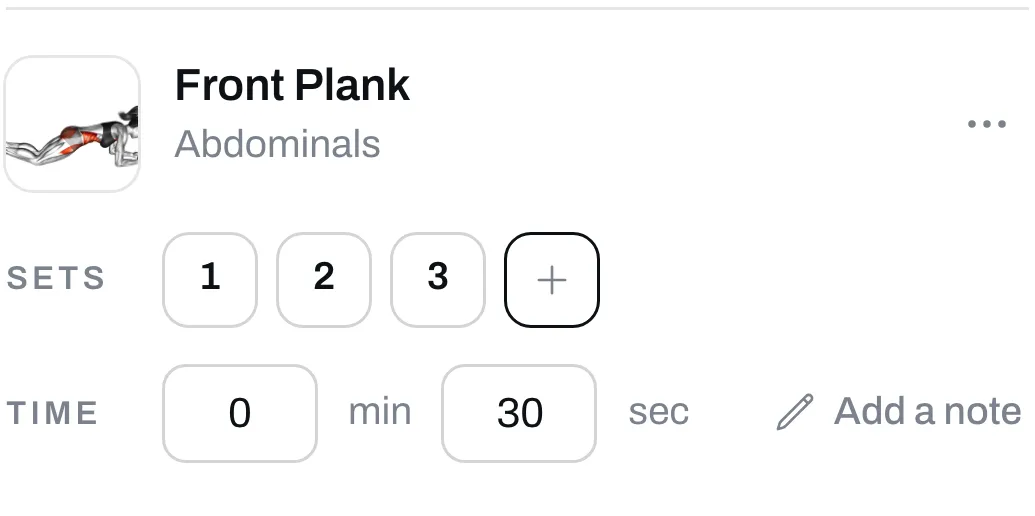
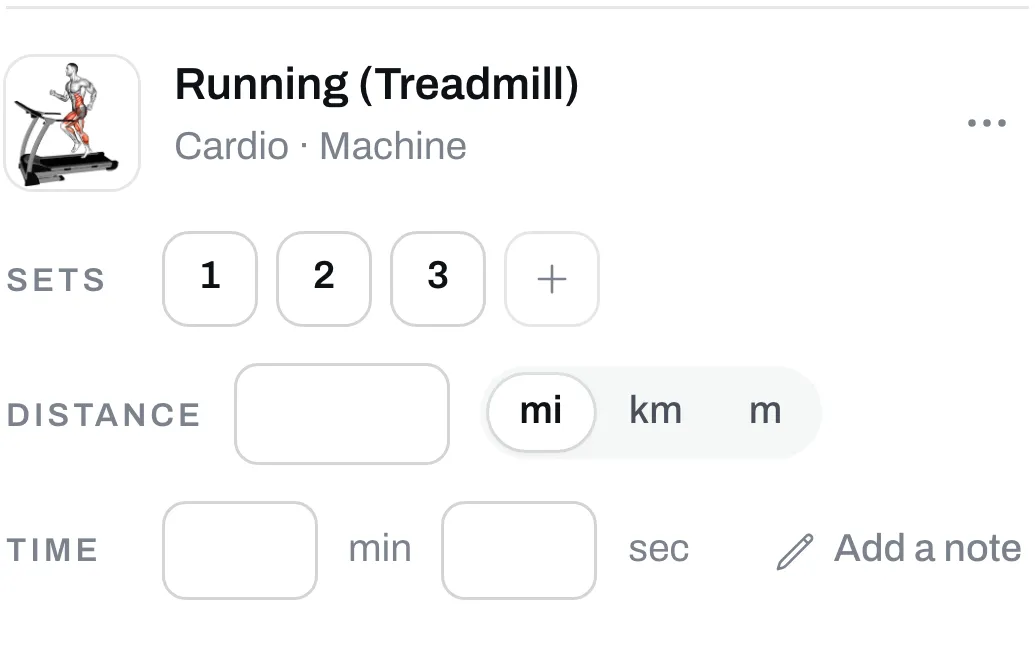
Some exercises aren’t counted in reps. A plank takes a time, and a run takes a distance, a time or both.
Notes
Click Add a note to tell people something about an exercise, like “Pause for one second on your chest.” Notes show under the exercise on your program’s page. They don’t go into the Trainlike app.
Supersets
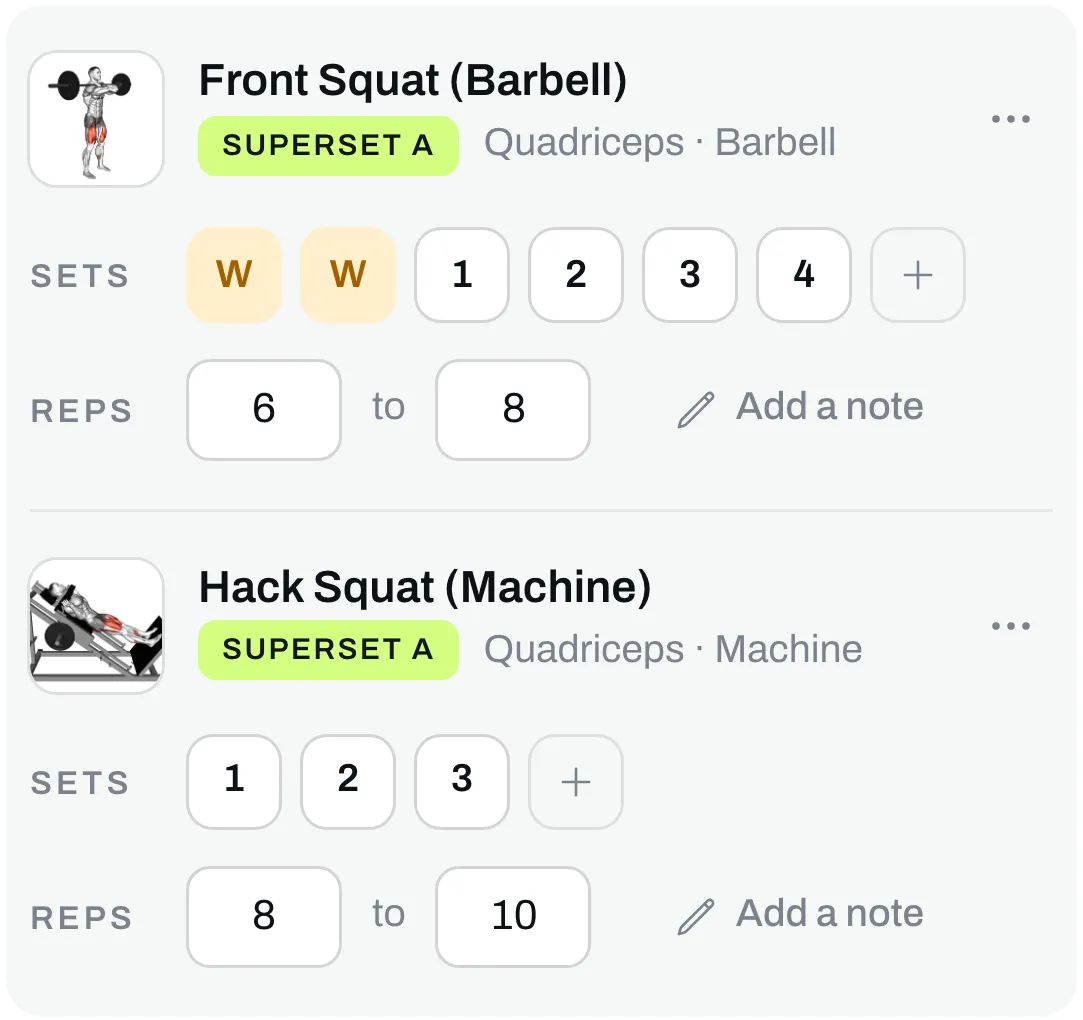
Click the three dots on an exercise, then Superset with next. It joins the exercise below it, and both get a Superset tag.
Move, replace or remove an exercise
To move an exercise, drag it by the dots on its left. The three dots on its right also let you move it up or down, or remove it.
To swap an exercise for another one, click the three dots, then Replace exercise. Search for the one you want, click it, then click Use this. It takes the old one’s place, and the sets and the note stay. The reps stay too, unless you swap to a different kind of exercise, like a lift for a plank. Then they start over.
Copy, move or delete a routine
Click the three dots at the top of a routine to move it, copy it or delete it. Copying is the quick way to make a second version of a workout.