
A skill is your plan, written for an AI assistant. Your customer adds it to Claude, ChatGPT or Gemini. After that their assistant helps them follow your plan and answers their questions the way you would. It’s an AI following your plan, and it never says it’s you.
This is on Plus, with up to 5 a month. A document can be up to 20 pages and 20 MB.
Pick what it’s made from
Go to Skills and click New skill. Click Upload a document and choose a PDF, Word, Excel, CSV or text file. If you already have the plan on your page or in Programs, pick it under Or use something you already have.
One skill is one plan. It can be a training program, a meal plan or a guide. Upload the plan and how to follow it, and leave out the rest, like the intro or photos. Keep a long program in one upload, because a skill made from part of it only knows that part.
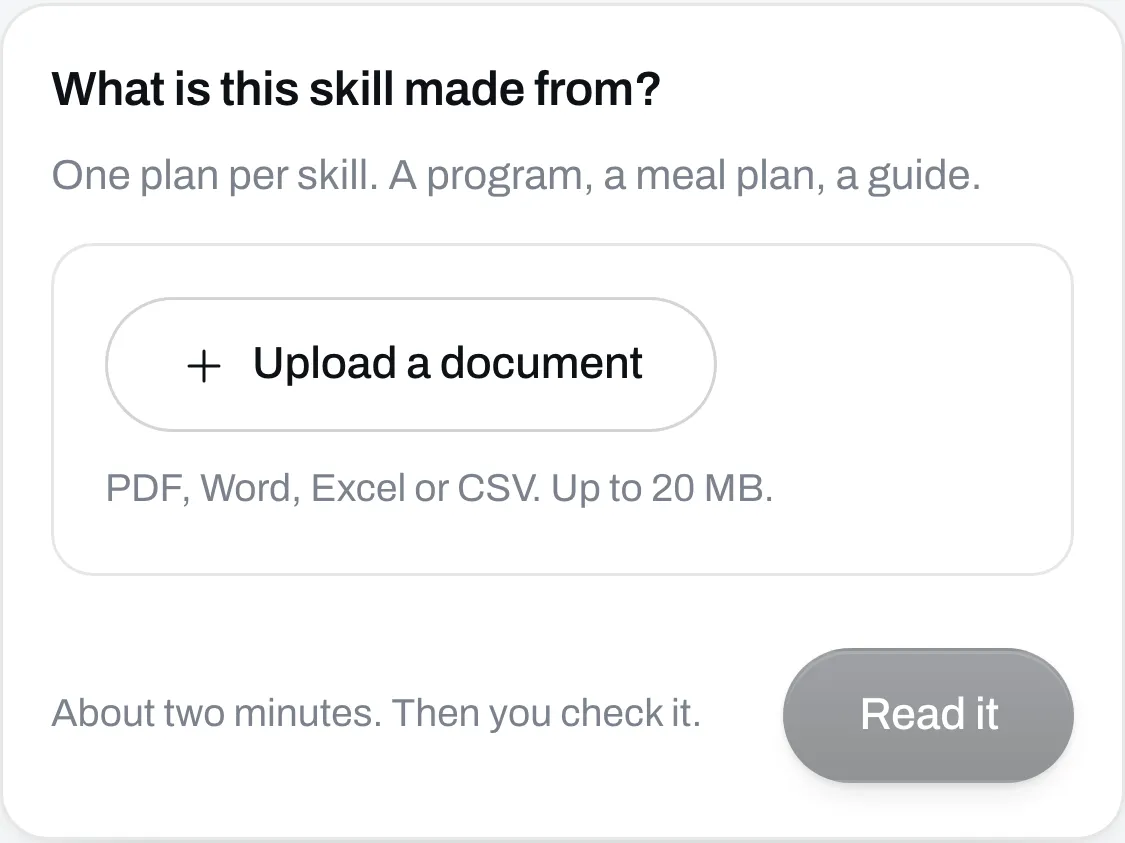
Then click Read it.
Wait while we read it
This takes a minute or two. You can leave the page, and your skill will be on Skills when you come back.
Go through the four steps
Your skill’s screen has four numbered steps and Details. You start on 1. Your plan. The button at the bottom of each step, like Next: what’s missing, takes you to the next one. You can also click any step at the top.
1. Your plan
This is what we took from your document. Click each line and read all of it. If we got a number wrong, change it right there. Your customer’s assistant goes by these words, so it’s worth a few minutes.
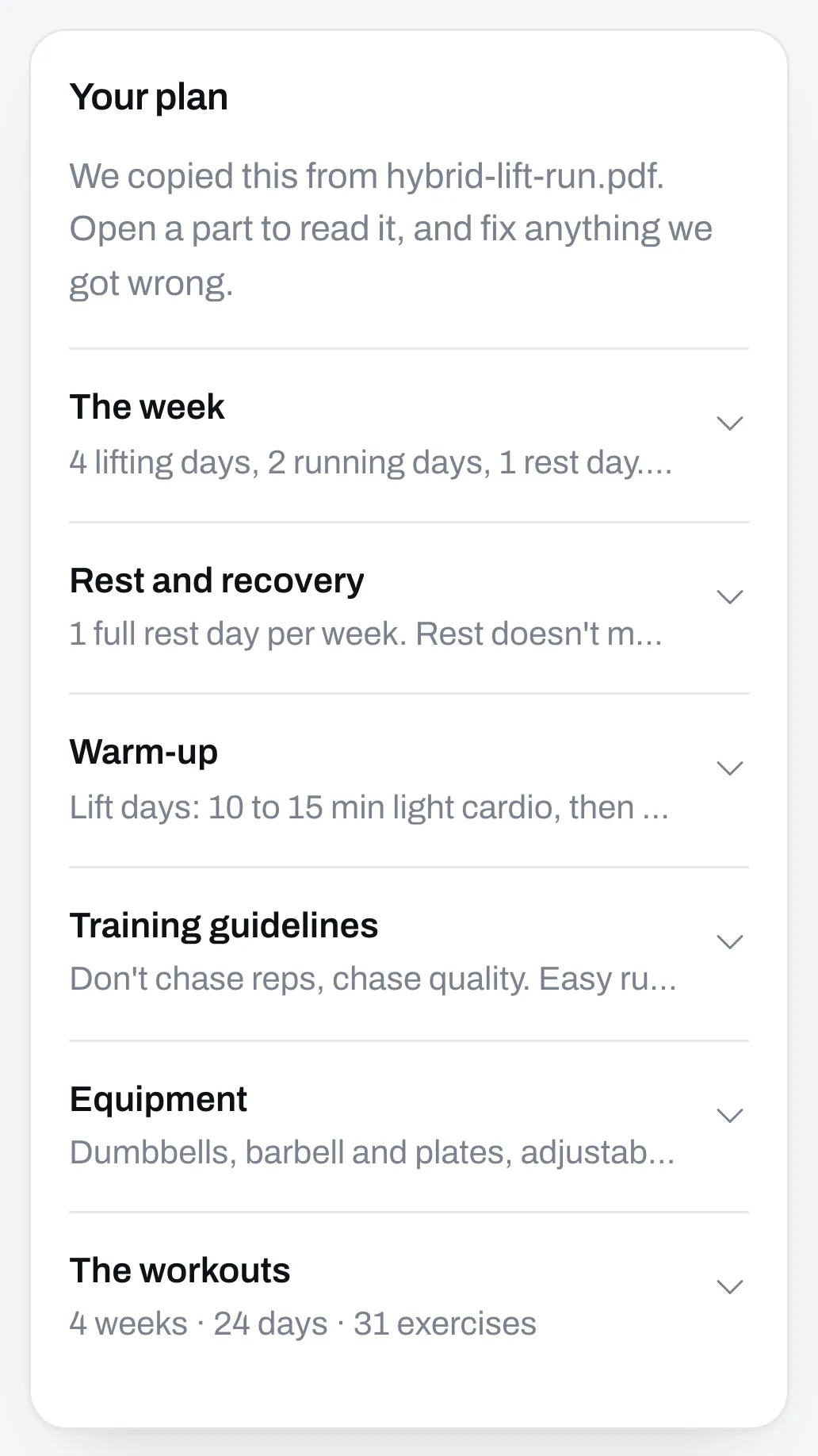
2. What’s missing
What your plan doesn’t say lists things a buyer might ask that your plan doesn’t answer. Answer each one or skip it. See Answer what your plan doesn’t say.
Under the questions, Anything else the AI should know is for whatever you’d tell a client that isn’t in your plan.
3. How a chat starts
These are the questions the assistant asks a buyer first, like which week they’re on and what equipment they have. Change a question, delete one, or click Add a question. Drag a question by its handle to change the order.
4. About you
Under How you talk, write how you talk to a client, or paste a few replies you’ve sent. Not sure what to write? Under Or start from an example, click Use this beside one, then change the words until they sound like you.
Under Things the AI should never do, write your own rules, one on each line, like “Recommend supplements”. You don’t have to add the basics. Under Every skill already has these, you can see that a skill never gives medical advice, never promises results and never writes a new plan.
Each skill has its own About you. A new skill starts with a copy of what your newest skill has, and you can change it there.
A skill can link to your own website, but it can’t send buyers to a page where they pay or ask for their details. We check every skill before buyers get it. See When we stop a line in your skill.
Save
Click Save. Nothing is kept until you do, and it says Not saved yet beside the button until then. You can go from step to step before you save. What you typed stays.
Beside your skill’s name it says how many questions are left. Once every question is answered or skipped and you’ve saved, it says Ready to sell.
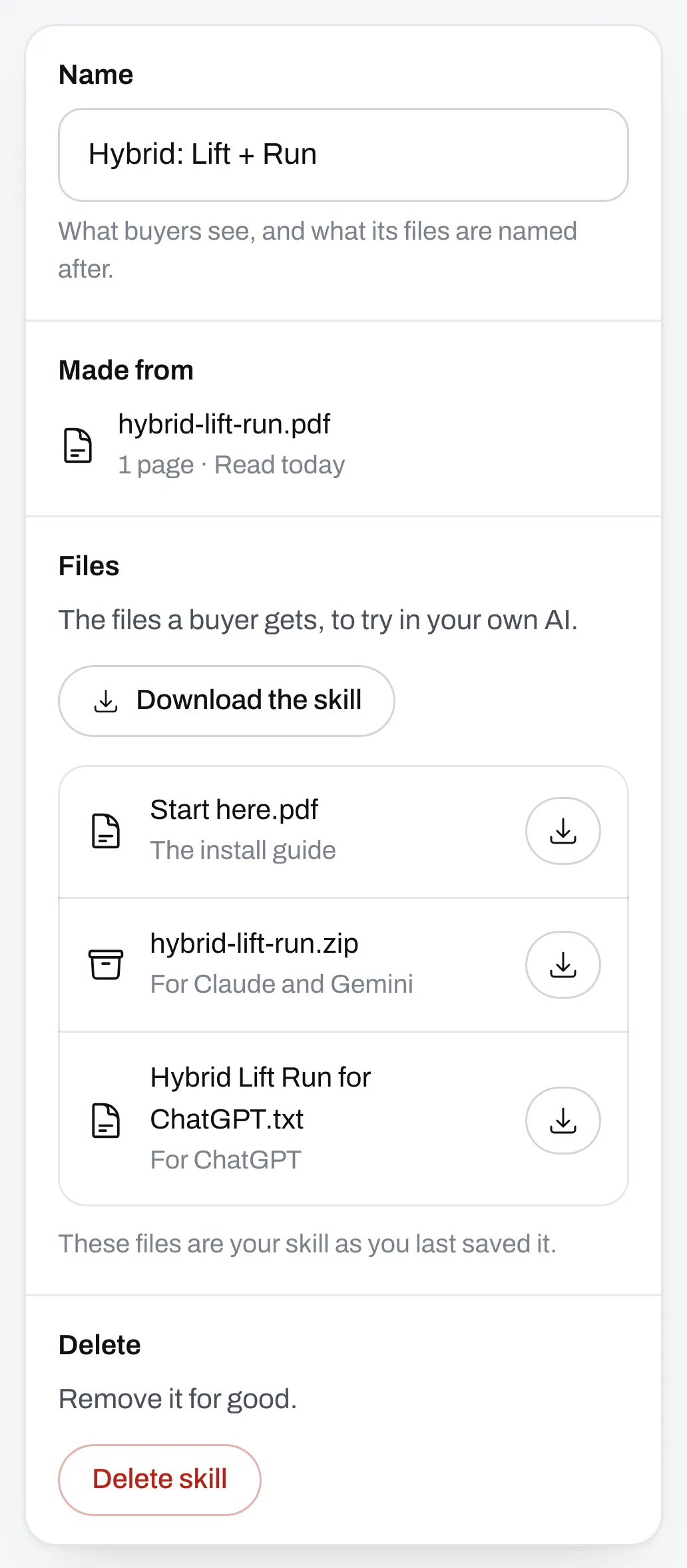
To change what the skill is called, click Details and change Name.
Download it and try it
Click Details, then Download the skill to get its three files. The first is the install guide, the second is for Claude and Gemini, and the third is for ChatGPT. Add the skill to the assistant you use and ask it what buyers ask you.
If an answer isn’t what you’d say, go to 2. What’s missing and click Add your own. Write the question and the answer you want. See Answer what your plan doesn’t say. Then save and download it again.
When you change your program
If you made the skill from a program in Programs and you change the program after that, Details says Your program has changed since you made this skill. Click Update the skill to bring the changes in. Your answers stay.
A skill made from a file doesn’t update. To use a new version of the file, make a new skill from it.
A new skill counts toward your 5 a month, and so does an update. One that didn’t work on our side doesn’t count.